Andy Heydon

Month: January, 2013

The 50 Shades of Apple Crazy

If you’ve been reading any of the news and commentary about Apple the past couple of weeks then you could be mistaken for thinking that the company’s demise is imminent. The stock price is falling, orders for components are being cut, and people are offering up their thoughts on what the company needs to do to revive its brand.

Yet Apple announced last quarter revenues of $54.5 billion with a net profit of $13.1 billion, both of which are company records. Indeed the only company to have ever posted larger numbers was Exxon and they had the happy coincidence of high oil prices to juice their figures. But the great crime in Apple’s revenue was that growth is not increasing – Apple is still growing, just not at an increasing pace, a second order offense. I’m sure that there is not a CEO in the world that wouldn’t swap places with Tim Cook to announce such disappointing figures.

Now some of this Apple woe is self inflicted. Apple is a secretive company and only comes up for air at the quarterly results calls and for two or three product announcements a year. The rest of the year is pretty much silent and so journalists and analysts are reduced to scanning Chinese language rumor sites and making guesses based on competitors’ technology. But since the genie was let out of the bottle in 2007 for the original iPhone, Apple has to work increasingly harder to impress and unless then come up radical innovation then there is always going to be a chorus of ho-hums.

Much is made of Apple’s decreasing market share, even though they sold 75 million iOS devices in the last quarter. But interestingly, AT&T announced that 84% of smartphone activations in the latest quarter where for iPhones, and for Verizon iPhones accounted for 63% of all their smartphones sold. So, in the US at least, Apple’s market share is heading in an upwards direction.

Another thing about these 75 million devices is that supply of the iPhone 4 and iPad Mini was constrained for the entire quarter and the iPhone 5 for much of the quarter. So Apple could have sold many more devices if they had just been able to build them quicker. I’m sure every company would love to have problems like that. These supply constraints help to put a lie to many of the proposed solutions such as producing cheaper phones and the iPad Mini is too expensive.

Let’s consider the iPad Mini. Economic theory states that if supply exceeds demand then you increase the price, hence scaling back demand, to bring the relationship back into equilibrium. So actually Apple is leaving money on the table by selling the iPad Mini at $329, but when the product was launched, it was roundly derided as being too expensive. I guess the market doesn’t listen to the analysts.

The iPhone 4 is Apple’s cheap phone, in the US carriers sell it for $0 with a data contract. It doesn’t come much cheaper than $0 and while it doesn’t have all the processing power of an iPhone 5, it is not that compromised and can certainly run the latest version of iOS and the vast majority of apps without any difficulty. If the iPhone 4 was supply constrained for the entire quarter then cost conscious customers are certainly snapping them up. If Apple is having difficulty building all the devices it could sell (and maybe with their large capital expenditures they are moving to alleviate that problem) then the company doesn’t have much incentive to increase the product portfolio to chase down even more market segments.

Apple’s supply chain is very large and very complicated, but they have great economies of scale by restricting the number of products. Diversifying that portfolio with different screen sizes and form factors, complicates the supply chain and introduces unnecessary risks to the manufacturing cycle. Apple appears to be a company that keeps things simple to minimize risk. A reduced product mix is also beneficial to customers as a lot of redundant decisions are removed from the purchasing process. The more variables you have in the product range, the more the paralysis over decisions that are often difficult to evaluate. When you are selling 10 items every single second, and your stores are crammed full with people, you hardly want them agonizing over several perfectly good devices. More choice is not always good.

Every-one, outside of Apple, has suddenly developed these outsized expectations for the company, that it should be innovating every time it turns around. But in its 36 year existence it has introduced three original and revolutionary products – the Mac, the iPod and the iPhone. Everything else has been an iteration on those devices, which it is very good at. But this concentration on iteration is diametrically opposite to the Japanese model of throwing a bunch of stuff at a wall and seeing what sticks (and for generating journalistic excitement). Apple has built a readily identifiable brand and they are not going to cheapen it for the sake of a few extra dollars.

I don’t think Apple feels the pressure to change its approach because the market is constantly providing validation by record sales, and why should it?
Upgrading the delete confirmation button

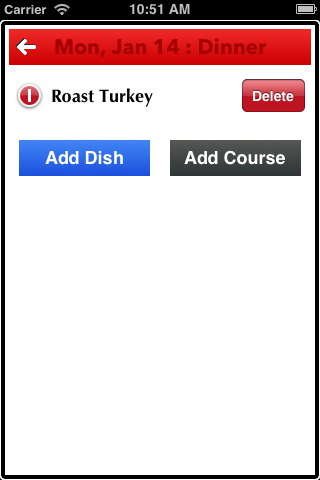
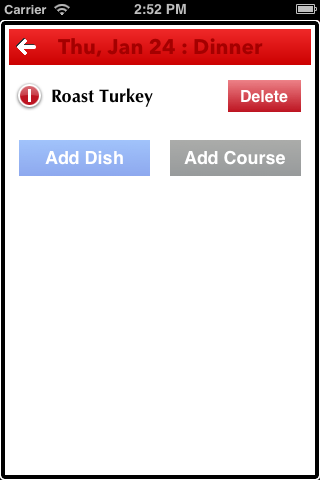
Standard delete confirmationiOS has a nice pattern for deleting a row in a table, either tap a minus symbol in a red circle or swipe your finger along the row and a delete button slides in from the right, tap the button to confirm the action or tap elsewhere to cancel. The only problem is that if you have a different look and style than the default then the delete button looks out of place.

I encountered this recently and decided to see if I could replace the delete button with one more in keeping with the rest of the graphic style in my MealSchedule app.

Searching for examples of what other people might have done led to a couple of general approaches. The first was to subclass UITableViewCell to get the ability to override the willTransitionToState: method that is invoked as a cell moves through various editing states, and the second was to walk through the view hierarchy of the newly animated delete button and modify it. There’s nothing wrong with first suggestion because it utilizes a standard API, but the second involves testing against internal class names and assuming a particular view hierarchy, neither of which have any place in any app, regardless of whether you are submitting it to the AppStore or not. Working against an API or utilizing ordinarily hidden features is a bad smell and a strong indication that you are doing something wrong.

So the first step to having a nice delete confirmation button is to subclass UITableViewCell and override willTransitionToState:. The method is called with a bit mask of the new states. We are interested in the situation where the delete confirmation button is about to be displayed.

- (void)willTransitionToState:(UITableViewCellStateMask)state {
if ((state & UITableViewCellStateShowingDeleteConfirmationMask) == UITableViewCellStateShowingDeleteConfirmationMask) {
} else {
[super willTransitionToState:state];
}
}
view raw gistfile1.m hosted with ❤ by GitHub

The default transition will create the shiny delete button and animate it into place. We don’t want to do that because we want to create our own button, but we will leave the other transitions to their default for the time being, so we are careful as to when we invoke super.

The next step is to create the new button and animate it into place. MealSchedule has a UIButton subclass named MPButton that encapsulates my alternative presentation, so let’s extend the transition to include that.

- (void)willTransitionToState:(UITableViewCellStateMask)state {
CGRect f;
if ((state & UITableViewCellStateShowingDeleteConfirmationMask) == UITableViewCellStateShowingDeleteConfirmationMask) {
if (!_deleteButton) {
_deleteButton = [MPButton buttonWithType:MPButtonTypeAlert withTitle:NSLocalizedString(@"Delete",@"Delete")];
[[_deleteButton titleLabel] setFont:[[UIFont buttonFont] changeFontSizeBy:-2]];
[_deleteButton addTarget:self action:@selector(delete:) forControlEvents:UIControlEventTouchUpInside];
[self addSubview:_deleteButton];
}
f = RBRectCenterPositionY([_deleteButton frame], CGRectGetHeight([self frame]));
f.origin.x = CGRectGetWidth([self frame]);
[_deleteButton setFrame:f];
f.origin.x = CGRectGetMaxX([self frame]) - [UIScreen tableContentPadding] - f.size.width;
_isDeleting = NO;
} else {
[super willTransitionToState:state];
if (_deleteButton) {
f = [_deleteButton frame];
if (_isDeleting) {
alpha = 0.0f;
} else {
f.origin.x = CGRectGetWidth([self frame]);
}
}
}
if (_deleteButton) {
[UIView animateWithDuration:0.3f
animations:^{
[_deleteButton setFrame:f];
[_deleteButton setAlpha:alpha];
}];
}
}
view raw gistfile1.m hosted with ❤ by GitHub

I use an instance variable to hold a reference to the delete button. I don’t strictly need to do this – I could use a tag and viewWithTag: instead, but the default implementation of the delete confirmation button uses tags within its hierarchy and so keeping a reference is safer than a tag by avoiding any unintended side effects from the base classes looking for views. The RBRectCenterPositionY is a simple function I use to center a CGRect within a particular height. I also use a category on UIScreen to return various numbers, such as the standard 10 pixels that are added as padding to a table’s content.

Note that when the cell transitions out of the delete confirmation state we want to make sure the delete button is moved out of the way, though if the cell is being deleted (as flagged by the _isDeleting variable) when just fade the button to invisible rather than move it to the right. This works as a smoother effect during the actual delete, which we will see in a minute, but for now you can tap the red minus to animate the delete button in, and tap it again to animate the button away.

The button is worthless unless we can actually perform a delete so we need to provide a method for the action we specified in the button creation.

- (void)delete:(id)sender {
_isDeleting = YES;
[self commitEdit:UITableViewCellEditingStyleDelete];
}
- (void)commitEdit:(UITableViewCellEditingStyle)editStyle {
[self willTransitionToState:UITableViewCellStateShowingEditControlMask];
if ([[_table dataSource] respondsToSelector:@selector(tableView:commitEditingStyle:forRowAtIndexPath:)]) {
NSIndexPath *ip = [_table indexPathForRowAtPoint:[self center]];
[[_table dataSource] tableView:_table commitEditingStyle:editStyle forRowAtIndexPath:ip];
}
[self didTransitionToState:UITableViewCellStateShowingEditControlMask];
}
view raw gistfile1.m hosted with ❤ by GitHub

When the delete button is tapped, it will invoke the delete: method that in turn invokes another local method named commitEdit:. As my button is a complete replacement for the standard button then we need to invoke the same transitions that would normally occur. In this particular situation, my table is always in edit mode so we will always be transitioning back to the UITableViewCellStateShowingEditControlMask state.

The table’s datasource is the class that handles the delete so we need to invoke the standard tableView:commitEditingStyle:forRowAtIndexPath: method. The only slight problem here is that we need to know our current index path, and that is not available to us from the perspective of our UITableViewCell world. Unfortunately neither is the knowledge of the containing table. The table is actually a piece of private information in the base UITableViewCell class, but is not exposed to subclasses. Therefore we need to create a property, named table here, to pass in the table reference when we create an instance of our cell. Note that you cannot call this property tableView because that will conflict with the private reference!

The final step is to handle the cancelation of the delete by tapping elsewhere in the table. The easiest way of doing that is to set up a UITapGestureRecognizer on the table.

- (void)willTransitionToState:(UITableViewCellStateMask)state {
if ((state & UITableViewCellStateShowingDeleteConfirmationMask) == UITableViewCellStateShowingDeleteConfirmationMask) {
// ...
_showingConfirmation = YES;
_cancelDeleteGesture = [[UITapGestureRecognizer alloc] initWithTarget:self action:@selector(deleteConfirmation:)];
[_table addGestureRecognizer:_cancelDeleteGesture];
} else {
// ...
}
// ...
}
- (void)didTransitionToState:(UITableViewCellStateMask)state {
if (_showingConfirmation) {
if ((state & UITableViewCellStateShowingDeleteConfirmationMask) != UITableViewCellStateShowingDeleteConfirmationMask) {
_showingConfirmation = NO;
if (_cancelDeleteGesture) {
[_table removeGestureRecognizer:_cancelDeleteGesture];
_cancelDeleteGesture = nil;
}
}
}
[super didTransitionToState:state];
}
// In iOS5 the tap gesture is fired before the touch on the delete button, even though the highlight happens
// In iOS6 the touch on the button fires before the tap gesture
- (void)deleteConfirmation:(UITapGestureRecognizer *)sender {
if ([sender state] == UIGestureRecognizerStateEnded) {
UITableViewCellEditingStyle editStyle = UITableViewCellEditingStyleNone;
// Determine if we actually tapped on the delete button
CGPoint curLocation = [sender locationInView:self];
if (CGRectContainsPoint([_deleteButton frame], curLocation)) {
_isDeleting = YES;
editStyle = UITableViewCellEditingStyleDelete;
}
[self commitEdit:editStyle];
}
}
view raw gistfile1.m hosted with ❤ by GitHub

The gesture recognizer is created when we transition into the delete confirmation state, and removed when we have transition out of the confirmation.

One small wrinkle that I discovered here was a difference between iOS5 and iOS6. In the later SDK, the tap on the delete button will override that of the tap gesture, meaning the delete: method is invoked directly, but on iOS5 (and possibly earlier but I am not targeting those platforms so I didn’t test them), the tap gesture fires and the button’s action does not. Hence the deleteConfirmation: method tests to see if the tap was actually over the delete button or not.

Custom delete confirmationNow I have a nice delete confirmation button that matches all the other buttons in the app, and has been implemented without the knowledge or use of internal classes or views. In addition to the code above, I added a couple of custom methods on my table delegate to dim the other visible controls to avoid any confusion over the delete action, but that is just a little detail in my particular implementation.

I also decided to leave the red minus as is because it doesn’t look as out of place as much as the confirmation button. The only functionality I have not replicated from the default delete confirmation process is animating the red minus back to horizontal if the delete is cancelled. To be able to perform that animation with the standard button would require referencing the internal representation. Alternatively I could replace the button, which I might do if the lack of animation starts to bug me.

Chasing down splotchy bugs

“Is it supposed to look like this?”

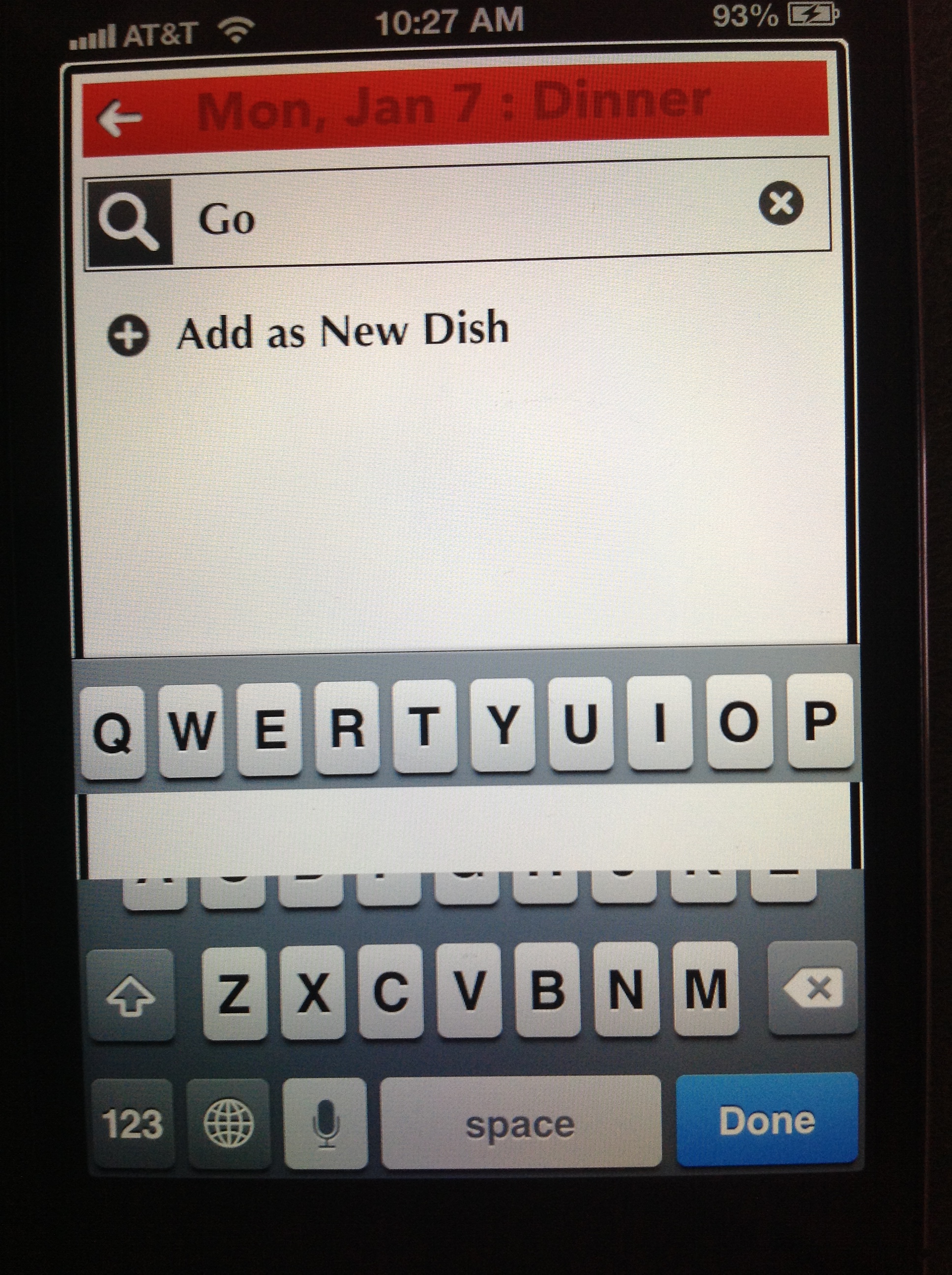
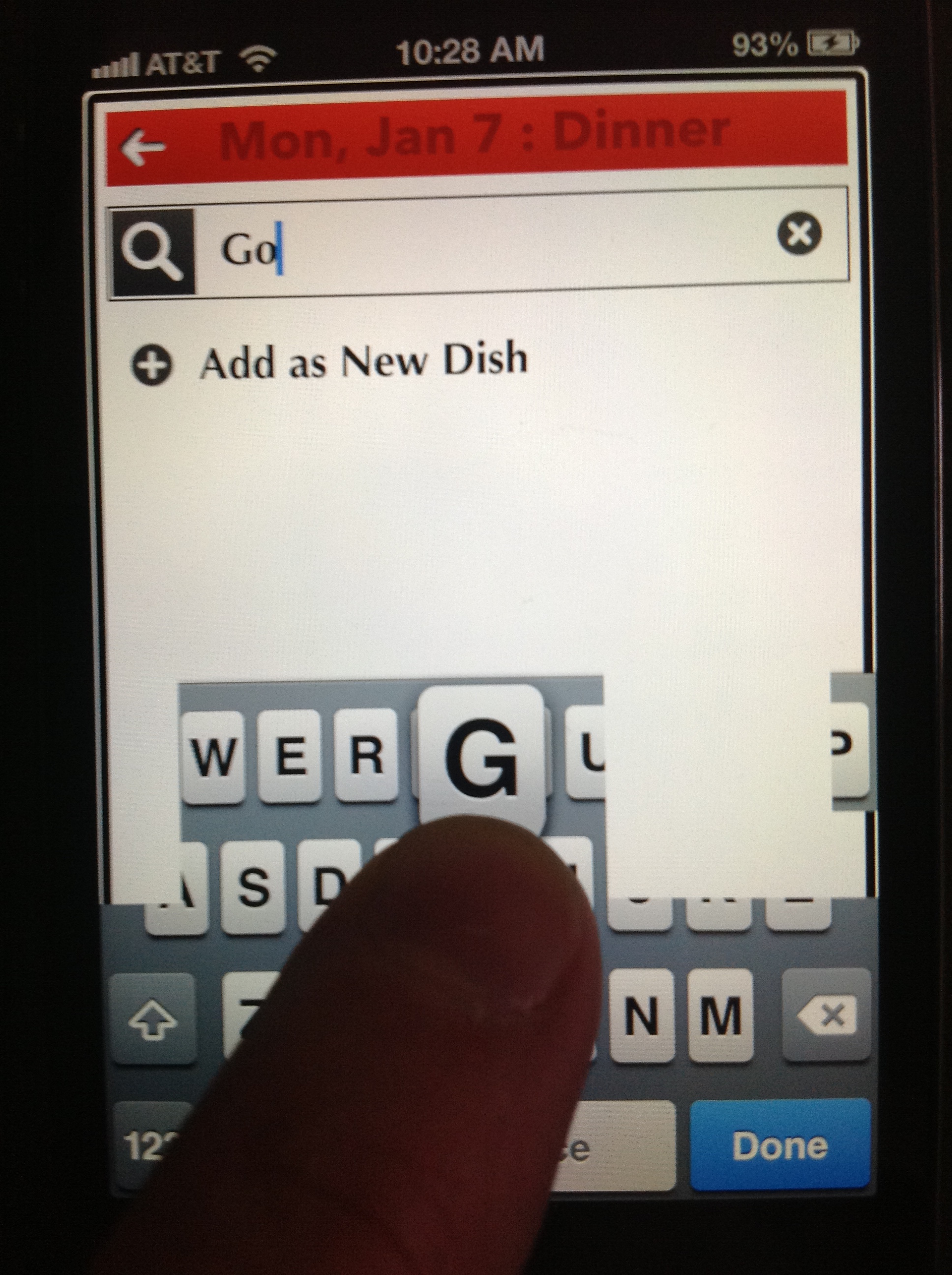
Those words were uttered by my wife after I had loaded the latest test version of my app on to a phone so I could demonstrate a new feature. She had wandered off into another area of the app, and as I peaked over her shoulder, I winced in fear as indeed, the screen should not look like that, but nevertheless contained big splotches of transparent pixels where the keyboard was supposed to be. She was trying to type in the name of an item of food but was struggling when half of the keys where randomly invisible.

Corrupt KeyboardThere are moments in software development when you encounter bugs so strange and bizarre that you have no explanation for their cause, that you cannot even conceive of how to achieve the effect if you were trying to on purpose. This was one of the those moments – how on earth do you, at an application level, render chunks of the keyboard to disappear, and different chunks became invisible when pressing different keys, and sometimes those chunks flashed at you, tantalizing and teasing letters?

Of course everything works perfectly on the simulator, just not on the device, and to add insult to the misery, the splotches were ghosts, as grabbing a screenshot failed to include the corruption. I had to resort to using a second camera to capture their existence.

I am on the verge of completing a new app, to be named MealSchedule, that allows you to plan out the dishes you want to eat at future meals. I envisage the app as a reminder of what I’ll be cooking that day and to guide my shopping — a future version will contain some ingredient/shopping list component. I had started the app as a proof of concept and to try out a few UI features, but I had grown to like the direction it was heading in, so I was now focused on launching to the app store. Except there were transparent areas on the screen where they shouldn’t be, and I had no explanation of why.

The main fear, of course, is that this was an internal bug, a problem in iOS that only Apple could fix, a bug which would have an indeterminate timeline and therefore your whole app is scuppered before it can even launch. I’m sure my wife could sense my nervousness as she handed the phone back to me and left me alone to stew.

So first steps, try and isolate the problem. This was the only data entry field in the app, it is UITextView (because I needed multiple lines), but it was wrapped up in a third party control. Let’s quickly rip that out and try a plain UITextView… Hmmm, that works sometimes but the holes return when I use a large font size than the default. That’s odd, feels fishy, and doesn’t make any sense. I try several other things and continue to get inconsistent results. I can’t spot any discernable pattern.

Corrupt KeyboardThe UITextView is on a child view controller that is presented from the main screen. Let’s try dropping an instance on to the main screen (ignore the aesthetics for now). Great, that works perfectly, even the HPGrowingText version. Here was a clue, but it was late, I was tired and I’d had a couple of glasses of wine, to spot it amongst the raft of commented out code and quick hacks.

The next day, refreshed and raring to go because this was a do-or-die bug, I tried a different tack. The app worked perfectly on the simulator, but I had only pushed distinct builds to the device and those earlier versions had not exhibited any corrupt keyboard problems. Therefore I could analyze all the recent changes to determine where the problem was introduced and design a workaround or fix from there, only I wasn’t that sure exactly which build was previously on the phone.

Version control for a one person shop may seem like overkill, but I had been pretty good at committing after each discrete piece of functionality (64 commits in 6 weeks), so I had some pretty good fidelity on changes. Slowly by checking out each previous version and undoing each change, I eventually hit upon the one line — notice how all really strange bugs come down to one line — that caused the corruption or not.

The problematic line?

[_popoverView setClipsToBounds:YES];

A simple instruction telling a view to not draw any content outside of its bounds. Generally something that shouldn’t cause a problem, and while this particular view is an ancestor view of the UITextView, its bounds in this particular instance, were the entire screen and the keyboard was only ever corrupted on the first two rows of letters and not at the bottom. However the one distinguishing feature about this _popoverView was that it also had a shadow. Commenting out the shadow and leaving the clipping in, and the corruption did not appear. The shadow was important, and _popoverView had a subview that I could easily apply the clipping to, all the angst and fear could be addressed in a simple one line change.

So the morals of this story are:

  • Use version control and commit often, even if it is a personal project
  • Test on the device as often as possible, if for no other reason that you have some history. I had, potentially, about a week’s worth of changes to go through since I had last installed on the device
  • Don’t clip a view that has a shadow!

In Defense of Walkthroughs

Clear

Clear

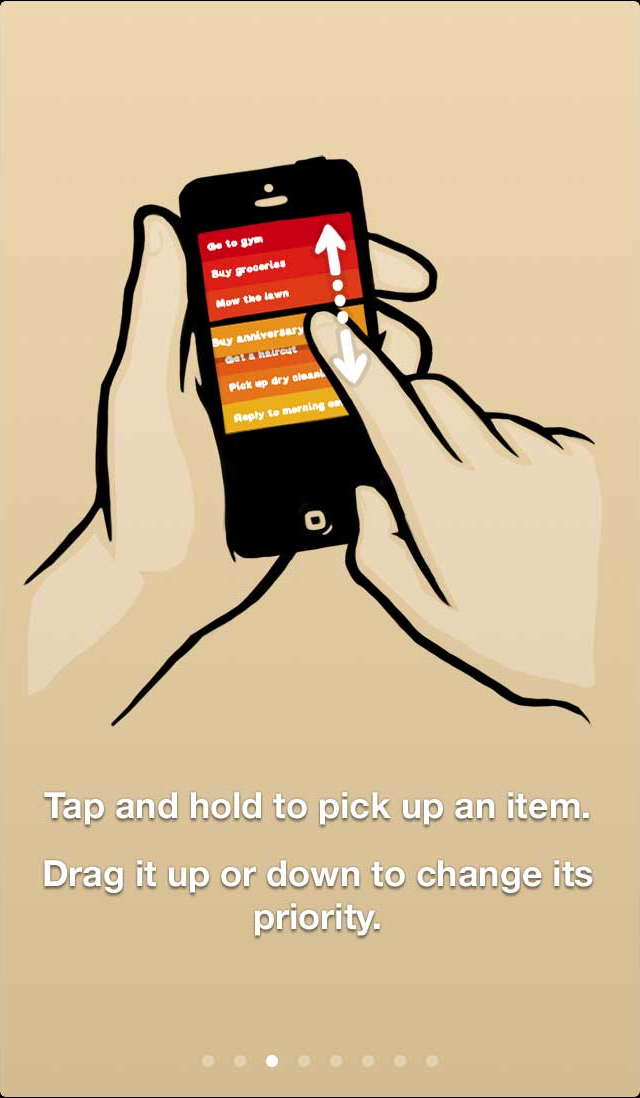
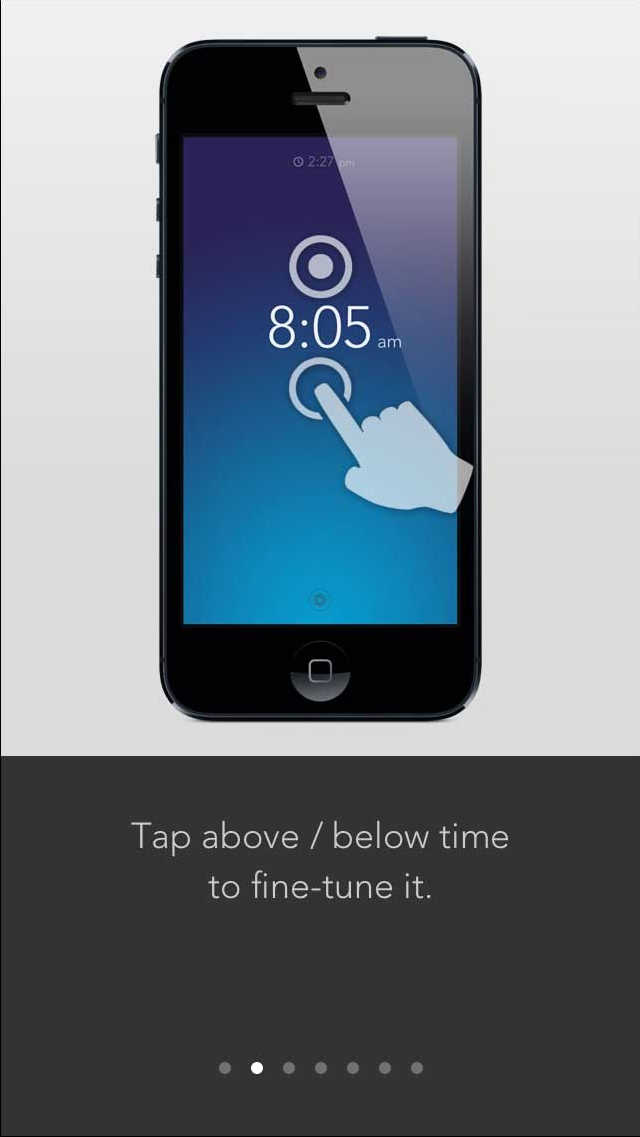
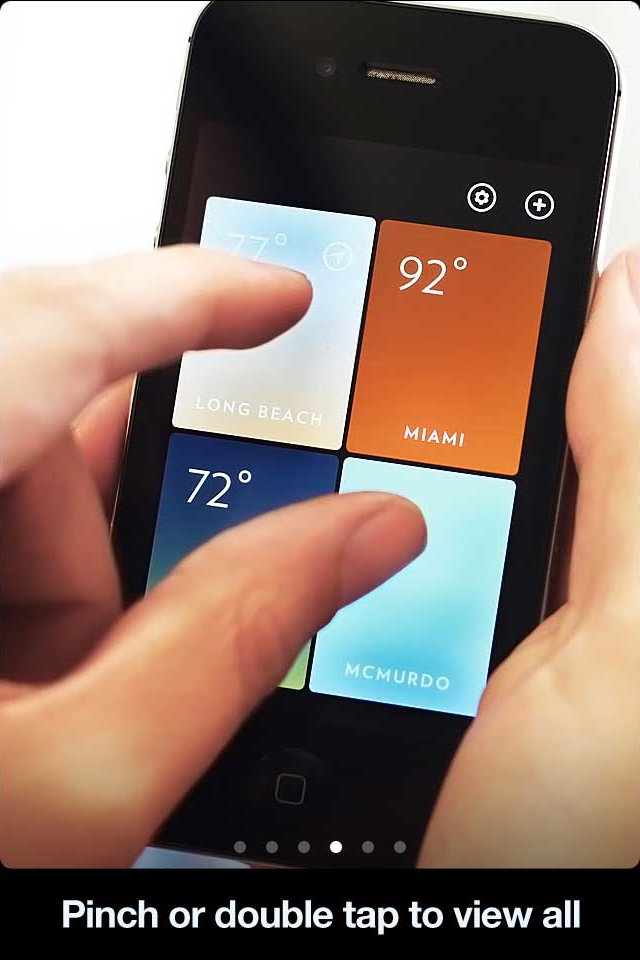
Max Rudberg recently published a post decrying the use of walkthroughs — an introductory series of panels — in an app. He cites Clear, Rise and Solar as “novelty apps” that sacrifice standard interactions for a minimal UI, and as a result have to pay a price of an multi-step tutorial to teach the user how to use the app.

I disagree with Max’s basic premise, I think that walkthroughs/introductions/demos have an important role to play. Clear, Rise, Solar and others should be commended for pushing UI design forward and experimenting with gestures. We are still very early in the era of touch based interfaces and so investigation should be encouraged. But because these gestures are new then there will there has to an some element of education somewhere along the line.

We forget, but touch based smartphones were new at one point in time, and the “basic” gestures were unfamiliar to every-one. But the genius of the Apple ads is they show the iPhone in use with hands and fingers interacting with the device (compare that to the vast majority of the Android ads that stress specifications). The ads were, and still are, an effective walkthrough and tutorial for every app. Without those ads every-one would seriously have to contemplate showing a walkthrough.

Rise Walkthrough

Rise

One of the challenges is selling software, and apps in particular, these days is that there is no real sales process. We browse on-line stores and in a single tap have purchased a product we’ve barely spent any time researching and understanding, and we definitely have not had a guided tour of the app’s compelling features. I suspect very few people read an app’s description — I know that I rarely do, especially if the description is loaded with “voted best …” quotes. A couple of pretty pictures and we’re sold, what’s a buck or two if it doesn’t work out? So as a software developer, our only chance of inserting ourselves into the sales process is in that very first launch. It is only then that we can thank the user for selecting the app and describe a few of the compelling features they might otherwise miss.

Consider a gym club. Once you’ve filled in the paperwork, some-one will show you around the facility pointing out particular items and explaining protocols. Most clubs have “standard” capabilities and I’m sure we could all muddle our way through eventually, but the club doesn’t want to take that chance. They want to ensure that you have the best possible experience and that you will come back. I recognize your app purchase may be on impulse, that there was perhaps very little research, therefore I’m going to take a small amount of your time to set you up for success.

Solar Walkthrough

Solar

I’ve never understand this macho “I don’t need no stinking documentation/training/tutorial” approach, and then get annoyed when it doesn’t do what I want it to do. Many years ago at a previous company, we had a customer who was adamant about not paying for any training or receiving any kind of assistance. Needless to say that he jumped straight in, completely missing a critical component of the setup, and proceeded to bad mouth us for crappy software. That product did not have a walkthrough or something to guide the user to the critical components first, nor did it have a non-standard UI, so we had a user flounder around for a bit, eventually dumping us for a competitor.

Many users are timid, they won’t explore or touch items they don’t undertand, many times they don’t even see an element on the screen even if it conforms to every standard practice in the interaction guidelines. The purpose of a walkthrough should be to encourage the user, to give them the sense of what is possible, to introduce unique features, to say that I care about their success. If that extra minute is what I have to pay to keep a successful customer then I’ll take it.

Design a site like this with WordPress.com
Get started